

If you’ve been watching AI roll through the data community and thinking, “this seems useful, but I have no idea where to start,” this post is for you. If you have ethical objections to using AI, follow your convictions — this post isn’t here to convince you otherwise. My position these days is that AI use is inevitable in this industry, so I want to understand how to use it carefully and effectively while advocating for mitigation to the societal and environment damage that it causes. So if you’re curious, read on. Including AI in your Power BI development process doesn’t require a dramatic leap. It’s a progression. Start small, build confidence, add more capability when you’re ready.
I use examples from both Claude Code and Github Copilot in this post. I currently prefer Claude and Claude Code as my AI harness, but everything described here applies broadly to other generative AI tools. The principles are the same; only the menus change.
Before diving in: make sure you understand your organization’s policies around AI tool use. Even pasting a DAX measure or a data model description into a chat interface is sharing potentially sensitive business logic with an external service, and the concerns only grow as AI tools gain more direct access to your files and environment. The European Data Protection Board’s AI Privacy Risks and Mitigations in LLMs is a vendor-neutral reference for understanding what’s at stake, and worth a read before having that conversation with your security or compliance team.
Let’s walk through five stages, from a simple chat window to an AI-assisted workflow.
Note: Both AI tooling and Power BI capabilities evolve quickly. The specifics here are accurate as of June 2026, but some details may have changed by the time you’re reading this.
🐛 Crawl: Ask Questions in an AI Chat Interface
You open Claude, ChatGPT, or your preferred AI chat. You ask it a question. You use the answer.
This is the easiest place to start, and it can be genuinely useful. You’re not giving the AI access to your files or your environment; you’re just asking it things.
Some examples that may work well at this stage:
- “How do I write a DAX measure that calculates rolling 12-month sales?”
- “How do I build a small multiples chart in Power BI?”
- “Why is my RANKX measure returning the same value for all rows?”
- “Create a Power BI theme file that uses these hex colors: …”
You paste the DAX into Power BI Desktop yourself or follow the steps the AI outlines. The AI never touches your files; it’s just a resource you can query.
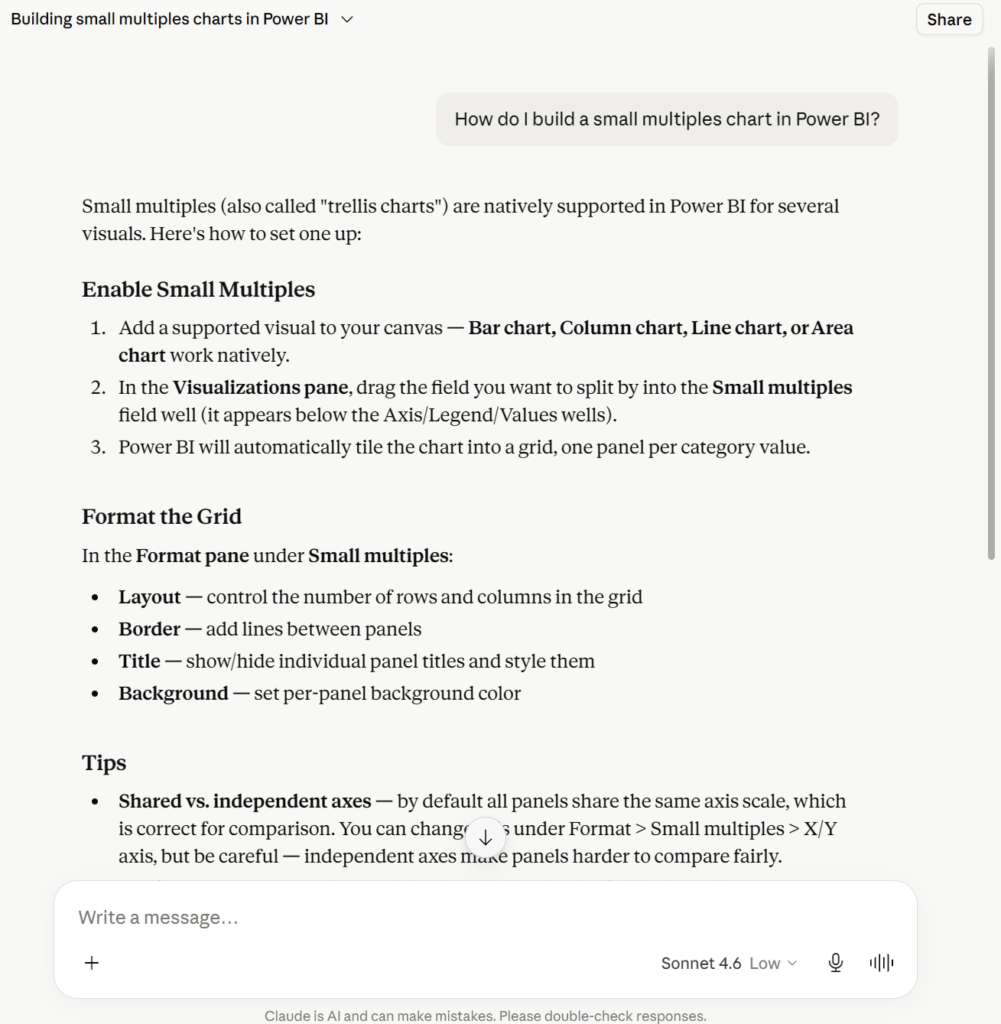
Always validate the output. AI is often wrong, particularly when it lacks context about your specific setup. It’s also non-deterministic: ask the same question twice and you may get a different answer. Test DAX measures against known values, verify steps actually exist in the UI, and don’t assume a confident-sounding answer is a correct one. Accuracy also varies with how you use the chat. Short, focused questions with fresh context tend to produce more reliable answers than long, winding conversations where the AI may lose track of earlier details or carry forward incorrect assumptions.
It’s worth starting here because it builds your intuition for how to prompt AI effectively. Learning to give clear context (“I have a fact table with a DateKey column and a Calendar table with a Date column joined on…”) makes a real difference in answer quality, and that skill pays off as you add more capabilities.
You’re ready for the next stage when you find yourself copy-pasting a lot, or wishing the AI could just see what you’re working with.
🚶 Walk: Bring AI Into Your Code Editor
You set up Visual Studio Code with an AI extension, open your Power BI project in PBIP format, and let the AI suggest or make changes, with your approval before anything is applied.
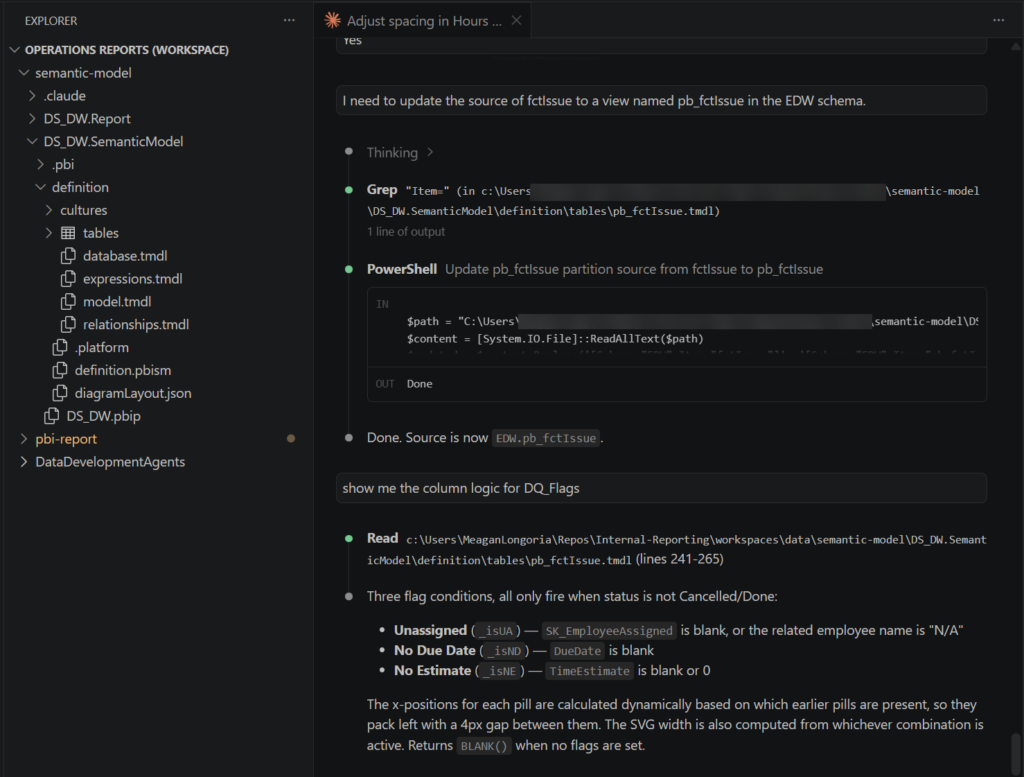
This is where things get a lot more powerful. A few important things to know:
You Need PBIP Format
Power BI Desktop’s default .pbix format is a binary file, so AI tools can’t read or modify it meaningfully. The PBIP (Power BI Project) format saves your report and semantic model as human-readable text files (TMDL for the model, PBIR-format JSON for the report). This is what makes AI-assisted editing possible.
To enable it: in Power BI Desktop, go to File > Options and settings > Options > Preview features and turn on Power BI Project (.pbip) save format.
AI Suggests, You Approve
In VS Code with an AI extension like GitHub Copilot or Claude Code, the AI proposes changes that you can review before accepting them. Nothing changes without your approval. Think of it this way: AI as a very fast first draft, you as the editor with final say.
This is also where planning mode is useful. Before writing a single line, you can ask: “I need to add a chart to the Sales Overview page showing which products have the highest gross margin this quarter.” The AI will lay out a plan; you can push back or refine it, then execute when you’re ready.
Tip: Give AI References
AI works much better when it has context. A few things worth providing:
- Point the AI to your existing TMDL files so it can read your naming conventions, relationships, and calculation patterns directly from the model.
- Link to the TMDL or PBIR schema documentation. Microsoft Learn has docs on TMDL and the PBIR report folder format, and pointing AI to the schema encourages it to avoid hallucinating property names.
- Share a snippet from an existing report in PBIR format so the AI learns how you’ve structured visuals, pages, and filters.
The more context you give, the fewer iterations you need to achieve useful output. You’re ready for the next stage when you want the AI to do things autonomously — query documentation, check schemas, look things up — without you having to manually feed it everything.
🏃 Run: Add Skills and Connect to MCP Servers
You install skills and connect your AI harness to MCP (Model Context Protocol) servers, giving it purpose-built capabilities and the ability to take actions on your behalf.
Skills are packaged capabilities that teach the AI how to perform specific tasks. Your AI harness likely comes with some built-in skills, but they likely are not specific to Power BI. MCP servers connect your AI harness to external tools and live data. Together, skills and MCP servers let the AI do significantly more than suggest text in an editor.
Microsoft publishes Power BI-specific options for both. The report-focused skills — Power BI Report Authoring and Power BI Report Design — ship together in the Power BI authoring plugin from Microsoft’s Skills for Fabric catalog. For semantic model work, the Power BI MCP server connects the AI directly to your model.
Installing Skills and Connecting MCP Servers in VS Code
For GitHub Copilot CLI, skills are installed as plugins from a marketplace. To get the Power BI skills, first register the Microsoft Fabric marketplace, then install the authoring bundle:
/plugin marketplace add microsoft/skills-for-fabric
/plugin install powerbi-authoring@fabric-collection
Once installed, those skills are active in Copilot conversations in your project. No further configuration needed to start using them.
For MCP servers, VS Code with Copilot connects to them through a .mcp.json file in your workspace. The Power BI local MCP server runs on your machine and works with a running instance of Power BI Desktop, or with your PBIP files directly. The Power BI authoring plugin automatically registers the Power BI modeling MCP server on your machine.
If you don’t like the Microsoft-provided plugins (they are fairly new and still in preview), there are others available in the community.
Once skills and MCP servers are in place, the AI knows how to work with Power BI assets and has the tools to act. You spend less time explaining the territory and more time reviewing what it did.
The key difference from the previous stage: the AI has agency within the boundaries you set. It’s not just suggesting text; it’s taking steps in a workflow. That’s a lot more capability, and it’s worth being deliberate about what you let it do on its own.
Use Source Control
If you’re using PBIP format, your project files are plain text and work naturally with Git. This becomes especially valuable at this stage: you can have the AI commit its changes after each meaningful step, giving you a clean history you can roll back to if something goes wrong. Treating AI-assisted changes like any other code change — committed, reviewable, reversible — is one of the better habits you can build at this stage. If you struggle to understand Git, you can ask your AI harness to help you.
⚙️ Customize: Add Your Own Instruction Files
You create markdown files that give your AI persistent, project-specific context about how you work: your conventions, your preferences, your patterns.
Most AI coding tools support some form of instruction file. In Claude Code, it’s CLAUDE.md. In GitHub Copilot, it’s custom instructions in settings. The format varies; the concept is the same.
For Power BI work, your instruction file might include things like:
- Your DAX formatting preferences (line breaks, indentation, variable naming)
- Your measure organization conventions (measure tables, display folders)
- Your model naming standards (for example, human-readable table and column names over technical prefixes or source system names)
- Design rules for your reports (color palette, font choices, no pie charts)
- How your date table is structured and what the key columns are called
- Links to your organization’s style guide or data dictionary
A good instruction file means fewer corrections and more outputs you can actually use.
Rather than putting everything into a single file, consider a lean primary instruction file that describes the project and references separate, focused files: one for DAX conventions, one for report design standards, one documenting your date table, and so on. In Claude Code specifically, this also takes advantage of how context is loaded: referenced files are only pulled in when relevant to the task at hand, rather than everything being loaded upfront. A single bloated instruction file consumes context window space on every interaction whether or not that content is needed. In GitHub Copilot, file inclusion is controlled by applyTo glob patterns in each instruction file, so you get similar control by scoping each file to the relevant context. The CLAUDE.md file can be created and edited manually or by the AI. Once it’s in your project root, the AI picks it up automatically on every interaction with that project.
⭐ Bonus: Turn Instructions Into Skills
You package your instruction content into a reusable skill that you can invoke across any project, not just the one where you wrote the file.
Skills are bundles of instructions that activate a specific capability or set of behaviors. Rather than copying your instruction file into every new project, you install the skill once and it’s available everywhere.
Why Skills Beat Generic MCP Servers for Personal Preferences
External MCP servers give your AI tools and data the ability to query an API, read a file, and fetch documentation. What they can’t give it is your preferences. An MCP server doesn’t know that you always put measures in a dedicated table, or that you prefer your cards to have a specific light gray background color, or that you never use the default blue theme.
Skills fill that gap. They capture the preferences and conventions that make your work yours.
A Real Example: Power BI Report Design Skill
I built a Power BI Report Design skill that I use across my projects. It contains:
- Design guidelines: My preferred color palettes, typography choices, visual spacing rules, when to use which chart type, accessibility considerations
- HTML mockup instructions: Detailed guidance for generating high-fidelity HTML mockups that closely reflect what’s actually achievable in Power BI Desktop, not idealized designs that look great in a browser but can’t be replicated in the tool
That last point matters more than it might seem. When you ask AI to design a report, it can easily generate beautiful HTML that would be impossible to build in Power BI Desktop: a fully custom tooltip on hover, pixel-perfect custom fonts, complex CSS animations. My skill steers the AI away from those dead ends and toward designs that translate cleanly into real Power BI visuals, formatting options, and layout constraints.
The skill also generates a Power BI theme file from the mockup, so the colors and typography translate directly into Desktop without manual configuration.
The result: mockups that set accurate expectations for stakeholders, designs I can actually build, and a theme file ready to apply. I drafted the original instruction files in Claude Desktop, had it package them into a skill, and installed it. Now I just invoke the skill to generate the HTML mockup and theme file.
🧱 Putting It Together
You don’t have to climb all five rungs at once. For many Power BI developers, the chat interface delivers real value without the file access risks that come with deeper integration. It’s not a compromise; it’s a real starting point. Master the first layer, and layer on the next when you find yourself bumping into its ceiling (and when you understand the risks and rewards of each step).
| Stage | What You Need | What You Gain |
|---|---|---|
| Chat interface | A browser or desktop application (Claude) | On-demand expertise, no setup |
| VS Code + AI extension | VS Code, PBIP format, AI extension | AI sees your code, proposes diffs |
| Skills + MCP servers | GitHub Copilot CLI, Claude Code, or similar harness | AI takes actions, queries live context |
| Instruction files | A markdown file in your project | AI learns your conventions |
| Skills | A skill file installed in your AI harness | Reusable preferences across all projects |
At every stage, you decide how much autonomy the AI has and what it has access to. Start where you’re comfortable and dial up the automation only as your trust and understanding of the tradeoffs grow.
Hi Meagan,
great blog post and exactly what I was searching for! Thanks!
I am Team Power BI Reportserver and currently crawling 😉.
However I often deam of walking and using MCP servers and accessing it all from my code editor.
That said it seems a bit like an uphill battle coming from Power BI Reportserver:
No PBIR or PBIP format supported so far (as well as no preview features in general 😉).
Additionally it is unclear if the “Skills for Fabric” like Report Authoring and Report Design would be working with Power BI Reportserver.
The option of developing a dashboard in fabric with test data and then copying it to Power BI Reportserver could also be an “interesting” if not futile attempt as Reportserver refuses to accept Reports from newer Power BI versions than the associated Reportserver version which always lags several months behind to the service.
That said…do you have any insight to share how to walk or even run whilst being on prem 😉 ?
Maybe I could work with MCP servers for Model design however I am not using Power BI but SSAS Tabular and Tabular Editor…so this process differs as well.
Thanks
Martin
I haven’t used PBI Report Server or SSAS in years, so I really don’t have any expertise in that area. The report visuals are not that different, mostly just behind on several features. I’m guessing here, but I bet you could get something working for it by creating your own instruction file to use alongside the report authoring skill from Microsoft. You could probably use AI to make a list of things that are different (visuals that cannot be used on-prem, any styling or other features that might be different), turn that into an instruction file and reference it. One annoying thing is that I don’t think you can publish PBIP files directly to Report Server, so you’d have to work on the files and then save everything back to PBIX to publish.
If you are doing SSAS, you likely already have a project with table definitions, relationships, and measures, so you could probably use AI to write your DAX measures pretty successfully. But I’ve never tried it.